How PDF Conversion Fits Into Everyday Business Document Workflows

 21 Oct 2026
 Reading Time : 4 Minutes
PDF conversion helps businesses return existing documents to editable workflows by converting text-based and scanned PDFs into Word-compatible files. This guide explains how to evaluate input support, OCR capabilities, editable output, formatting accuracy, and file limits. It also highlights the importance of reviewing converted documents, checking critical details against the original PDF, and retaining the source file until the updated document has been approved.
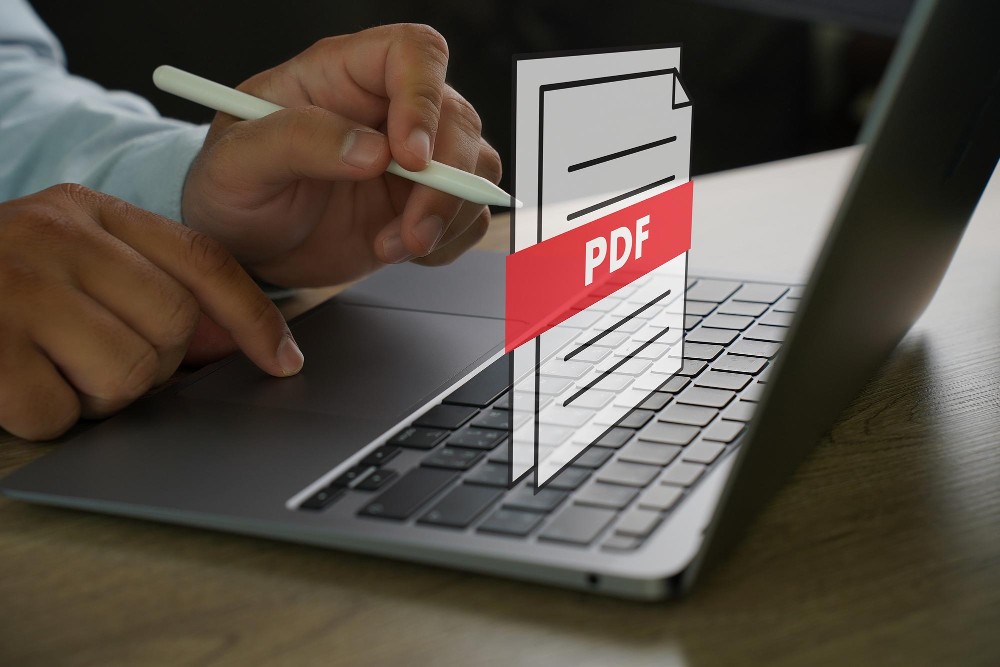
Business documents often reach a point where the format causes trouble.
A team might have a PDF proposal that needs editing, a policy, with no Word version left or a scanned procedure that has info but can’t be changed right away.
PDF conversion today works with both text-based PDFs and scanned or image-based documents. Regular PDFs convert directly. Scanned files need OCR first. Some files might have size limits depending on how you convert them. Some services let users convert documents without signing up or paying anything.
For businesses looking at document conversion options the key question isn’t just whether a PDF can become a Word file. It’s whether the converted document can fit back into the company’s editing, review and approval process.
What Businesses Should Check When Converting PDF Files
A practical evaluation should focus on five areas:
-
Input support: Does the tool accept both PDFs and scanned documents?
-
OCR: Can the tool read text that is inside page images?
-
Editable output: Does the tool produce a DOCX that employees can keep editing?
-
Cleanup requirements: How much formatting fix is needed after conversion by the tool?
-
File limits: Can the tool process the types and sizes of documents the business normally handles?
These factors give a basis for comparison, than a long list of features.
1. Input Support: Digital and Scanned PDFs
The first step is identifying the type of source file.
Text-Based PDFs
Digital PDFs usually contain text. They may have come from Word, office software, a reporting system or another business application.
I perform a test by opening the PDF and trying to highlight a sentence. If individual words can be selected Digital PDFs probably contain a text layer.
A PDF conversion service can convert this type of file directly into DOCX format.
Scanned PDFs
A scanned PDF can hold pictures of printed pages. The document looks clear to a person. The computer may not see the visible characters, as text.
These files need OCR before the content can become editable.
Supporting both source types matters because businesses often work with a mix of digital documents and older scanned records.
2. OCR: Recovering Text From Scanned Documents
A Practical Operations Example
Suppose a group of people who handle operations has a printed procedure that's 24 pages long.
This procedure was scanned a year ago. The way the process works has changed now. Some parts of the document need to be updated. By typing the whole thing again from scratch the team can follow this process. Scanned PDF goes through OCR. Then it becomes a DOCX. Then it gets reviewed. Then it gets updated. The converted document gives a starting point. It still needs to be checked against the original scan.
3. Editable Output: Returning Documents to Normal Workflows
The purpose of PDF conversion is usually not the DOCX file itself. The goal is to make the document usable again.
Using the service to convert PDF to editable Word gives employees a DOCX they can open in Word-compatible software and continue working with.
They can then:
-
revise paragraphs;
-
update tables;
-
add comments;
-
insert new sections;
-
change client or company details;
-
use tracked changes;
-
send the document through internal review..
4. Cleanup Requirements: PDF and DOCX Use Different Layout Systems
Elements to Review
Check:
-
headings and paragraph order;
-
page breaks;
-
headers and footers;
-
lists;
-
image placement;
-
text boxes;
-
columns;
-
tables.
Tables need attention because their alignment carries meaning. Businesses should test a converter with documents rather than relying on a simple one-page sample.
5. File Limits and Access Requirements
The tool does not need registration or a subscription. This can be helpful when conversion is only done from time to time and the business does not want another software account.
The user workflow is:
-
Select the PDF.
-
Enable OCR if the document is scanned.
-
Convert the file.
-
Download the DOCX.
-
Review the result.
-
Continue editing in Word-compatible software.
How Conversion Fits Into Document Management
It’s still smart to keep the PDF as a reference.. This method keeps recovery from editing and it reduces the risk of using an unreviewed conversion, as the official business record.
FAQ's
How can I know whether a PDF needs OCR?
I tried selecting a sentence in the PDF. If I can highlight words the PDF probably contains a text layer and can be converted directly. If each page behaves like an image OCR is more likely to be required.
Should the original PDF be kept after conversion?
Yes. The original PDF provides a reference for wording, page order, tables and formatting. I keep the PDF unchanged until the converted DOCX has been reviewed and approved.
Is the converted DOCX, for immediate business use?
Not always. Text-based documents may require a few corrections while scanned files and complex layouts may need a closer review. Important names, figures, dates, tables and legal wording should be checked against the source PDF before use.




Subscribe & get all related Blog notification.



Post your comment